Most of the time, default Adobe Photoshop’s patterns just could not satisfied designers needs. Minutes later you will be creating your own custom pattern for buttons, interfaces, photo scan-lines, etc.

1. Create a pattern image
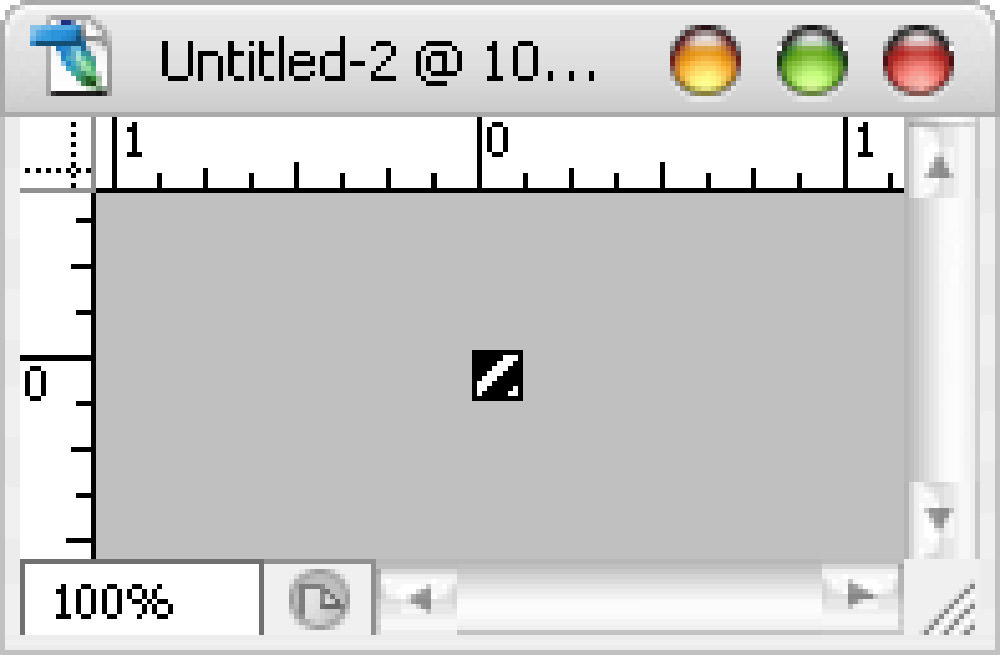
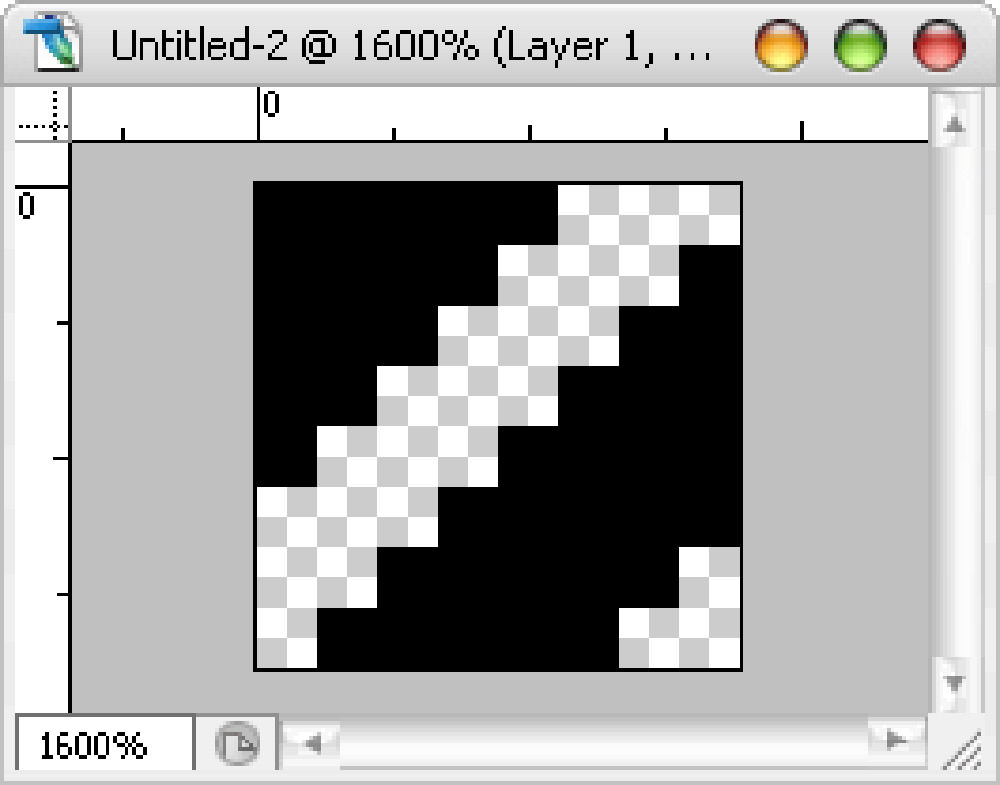
Fire up a new canvas. It should be small (in terms of height x width). Image you are creating here will duplicate itself to form your pattern in the later stage. For this example, I’ll be using 8×8 pixel canvas, zoomed them up and create a small pattern like this.

Pattern at 100% view

Pattern at 1600% view

2. Define as pattern
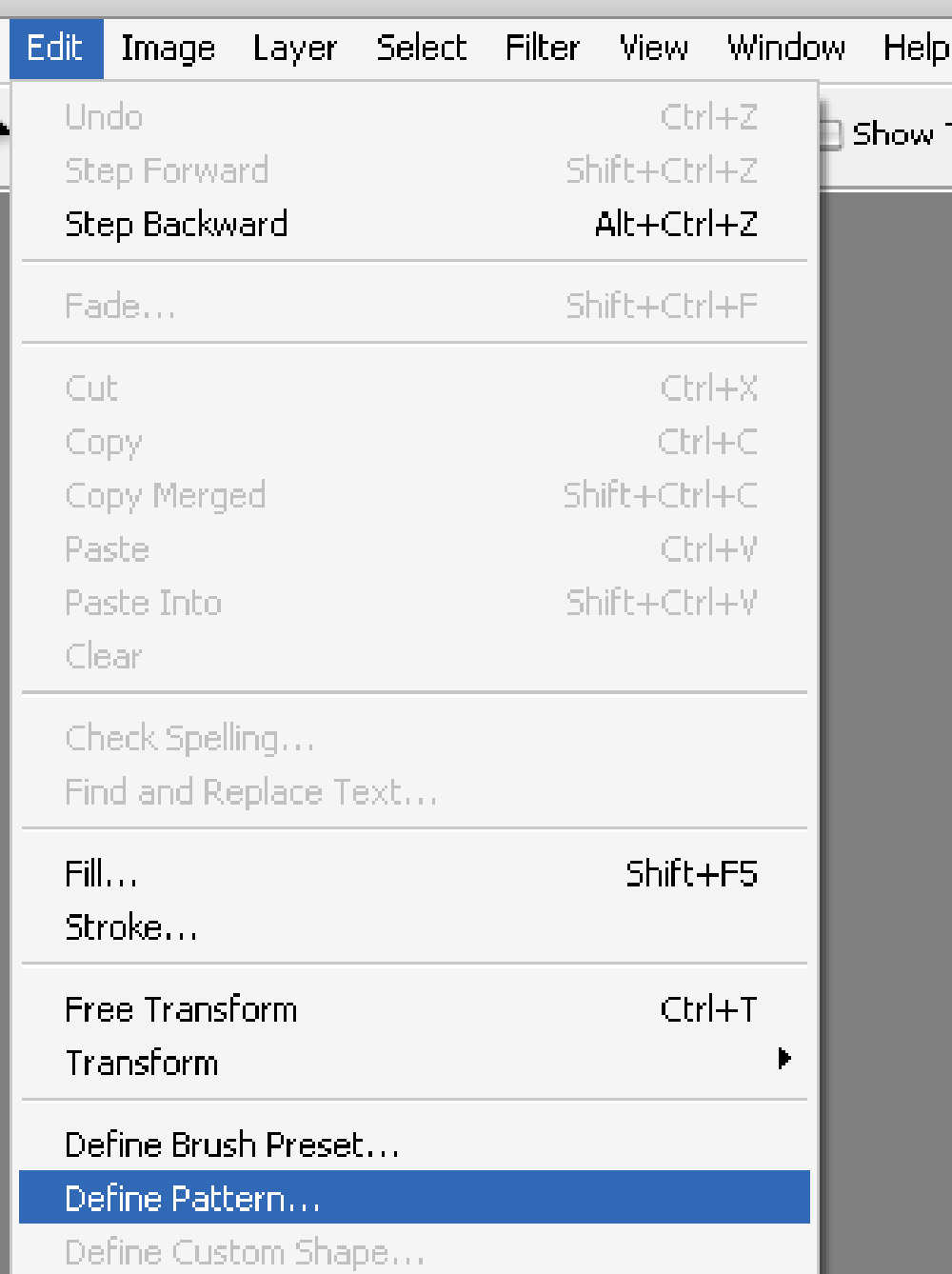
Let’s define it as pattern so it can be used at anytime. Select Edit ->Define Pattern.

Rename it to something you can remember (especially useful when you have a lot of custom patterns in future). I’ll call it Stripe5x because it will give me a stripe effect and 5px is how thick each stripes are. Click OK and you’ve just have your custom pattern defined.

3. Using custom pattern
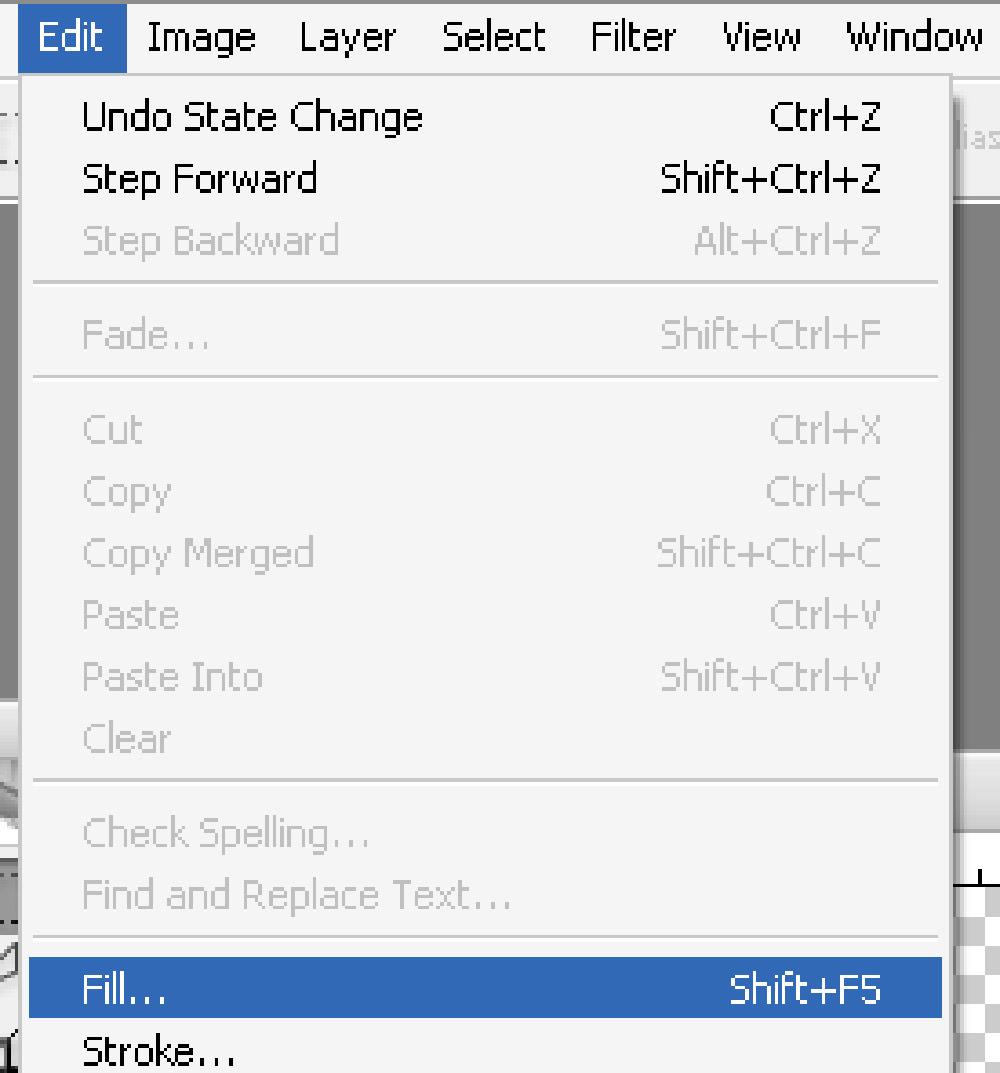
Create a new canvas to try out the custom pattern. With your new canvas selected, Select Edit -> Fill.

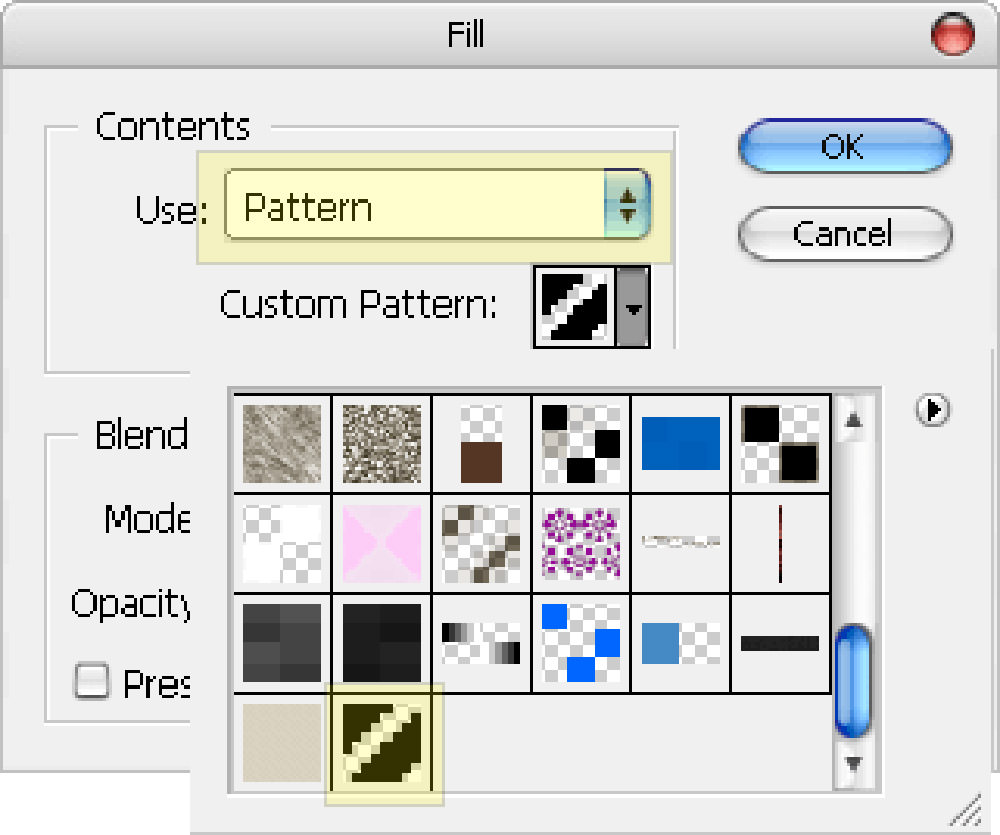
In the Fill dialog box, select Pattern from the dropdown, find the pattern you’ve just created in Custom Pattern and click OK.

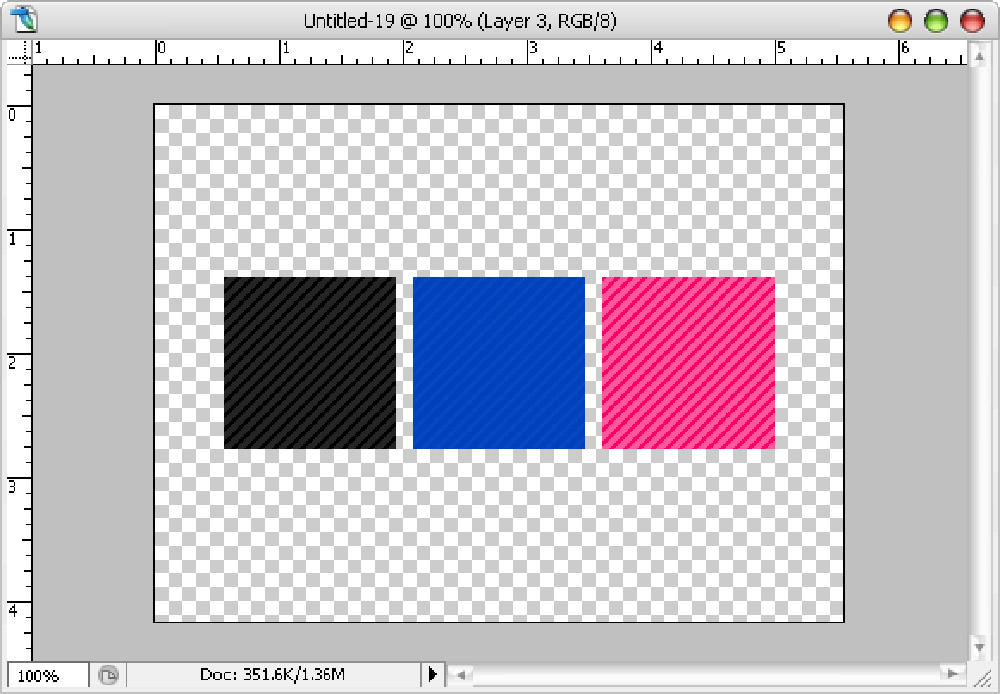
The canvas will now be filled with pattern you’ve just created. Tweak the colors and it should look fine.

Misc - Alternative way to call custom pattern
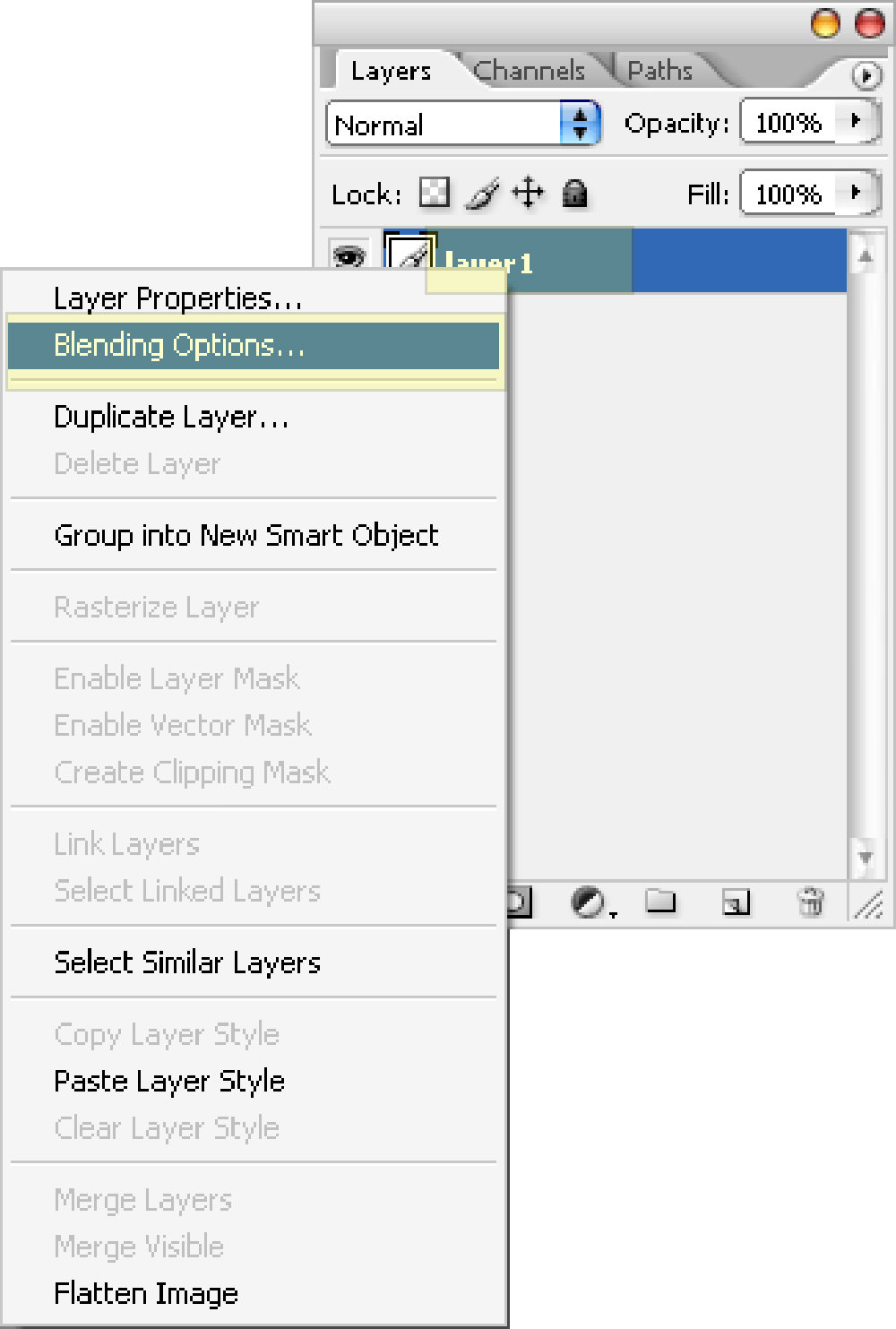
Another way to call up the custom pattern. (Right Click) layer name -> Blending Options

Check Pattern Overlay, select your pattern

Misc - Delete custom pattern
Anywhere in the pattern selection box, (Right Click), choose Delete.
Related Contents |
Sponsors |
|
Posted by hongkiat in Photoshop Tutorials , at 12.21.06
|
|


Comments
JtuneD December 21st, 2006
Thanks for the tutorial…haha!!
Replyjerry farina January 4th, 2007
thanks for the tips!
ReplyET January 5th, 2007
This tutorial does not teach any one how to “create” a custom pattern…
Replyusing your custom pattern, is not creating a “custom” pattern..It’s telling us how to use and color YOUR custom pattern.
Would you like to tell us how you made the pattern we have to download in your tutorial?
Aleks January 18th, 2007
Uh, sure it does. make 8×8 canvas….color as shown….edit -> define pattern
ReplyFabian January 20th, 2007
i agree with ET
im [uber] novice at PS CS2 ¬_¬
- what i wanna know is how did you get the pattern on the 8×8 cause that is what i want but i can’t do it at all.
Replyhongkiat January 20th, 2007
The title could be a bit mis-leading, I’ll have a tutorial on “create custom pattern” in a short while. Thanks for the feedback.
Replytechconet February 3rd, 2007
Thanks a lot….
ReplyMarko February 9th, 2007
Nice tutorials for beginners. You could explain in more details how to make striped pattern.
ReplyRomica March 3rd, 2007
Nice tut. Please, give me PSD Files. TAnk`s
Replyhongkiat March 4th, 2007
Romica, both the PSD (Sampls and Tutorial) links are on this page. :)
Replysandy March 19th, 2007
Ok….to explain to others HOW to save a defined pattern.
Start a new projet at the size you want..like 8×8 or 4×4…whatever..
Use the pencil tool and zoom in at 1600px.
fillin each pixel with the color u want..
when done, go up to the tabs up top and click on Edit/Define Pattern. Then save the pattern with whatever name you want to call it… then close out that project and don’t save it when closing it out.
Now you will have the pattern u made saved in your patterns.
ReplyBuddy April 3rd, 2007
Didn’t work out right for me someone help please!
Replyhongkiat April 3rd, 2007
Buddy: What seems to be the problem?
Replykyokokujo April 5th, 2007
hope to more in fotoshop
Reply12monthsOFwinter August 24th, 2007
I would appreciate you removing the links to my pattern- hot linking is not appreciated by the DA servers and I would rather people go to my page http://12monthsofwinter.deviantart.com/ than simply grabbing off your site.
ReplyShahZ February 7th, 2008
Hey there, what is the canvas size for the pattern (third from the left, third from the top) the one with gradients on both size..I bet that one gives a fiberglass effect doesnt it?
Replyhongkiat February 13th, 2008
Shaz: That’s 1×2 (width x height)
ReplyRaj July 11th, 2008
This tutorial is really helpful. Thanx a lot m8 :)
Replykozeyar July 15th, 2008
thanks man! i always wanted to know that
Reply:D
Angga Rifandi August 9th, 2008
I really need this tutorial to building my site. Great job dude
ReplyErdosam August 28th, 2008
Thanks for the tutorials…
Replybynge October 22nd, 2008
i can’t see the new pattern i create anywhere.
i followed exact steps till saving it with a name.
there isn’t any “custom pattern” option in the list of patterns .
this is the first time i’m creating any custom patterns. so , is it required to have a folder or file by the name “custom pattern”
Replybefore starting itself ??
please help
silence October 25th, 2008
Thanks awesome site and awesome tutorials.
Silence
Replyvespagap November 25th, 2008
tks for tutorial. Great job
ReplyEnergia Solar January 3rd, 2009
este tutorial complementa al de los botones, de nueva cuenta gracias por el mismo, es de mucha ayuda.
ReplyTrackbacks